SD cards are commonly used in devices that generate a large volume of data, such as cameras, drones, smartphones, and other portable electronics. Frequent read and write operations, combined with regular insertion, removal, and transport, make them more vulnerable to both logical corruption and physical wear than many other storage devices. Human error, including accidental deletion or formatting, also remains a common cause of data loss.
Fortunately, deleted files can often be recovered if the appropriate steps are taken before the lost data is overwritten. This guide explains how SD card recovery works on a Mac and provides step-by-step instructions for restoring deleted files using several proven recovery methods.
| Method | When to Apply |
| 🗑️ Trash Folder | If the deletion occurred while an SD card was connected to the Mac. |
| 💻 Paid Data Recovery Software | Has the highest chance of recovery. |
| 💸 Free Data Recovery Software | Good solution for easy cases of data loss. |
| 🕒 Time Machine | If the files were on the Mac at the time of backup. |
| ☁️ Cloud Backup | If you backed up your files to a cloud storage service (sometimes happens automatically). |
Table of Contents
Tips for Successful Recovery From SD Card
There are a lot of factors that go into the data recovery process that can impact its outcome, especially with ultra-portable storage devices like SD cards. While you can’t control them all, there are some things you can do to at least maximize your chances of success:
- Stop using the SD card as soon as possible: If you accidentally format an SD card or delete some files while playing with your digital camera, you must stop using it as soon as possible otherwise you risk overwriting the storage space that was occupied by the deleted files and making data recovery impossible.
- Start data recovery ASAP: If your SD card isn’t working correctly, you want to get your data off of it before the card stops working altogether.
- Create an image of the SD card if it’s corrupted: Having a second image of your data, even if it’s corrupted, is a good idea as you can then try to recover data from that second copy.
Method 1: Recover Files from the Trash on Mac
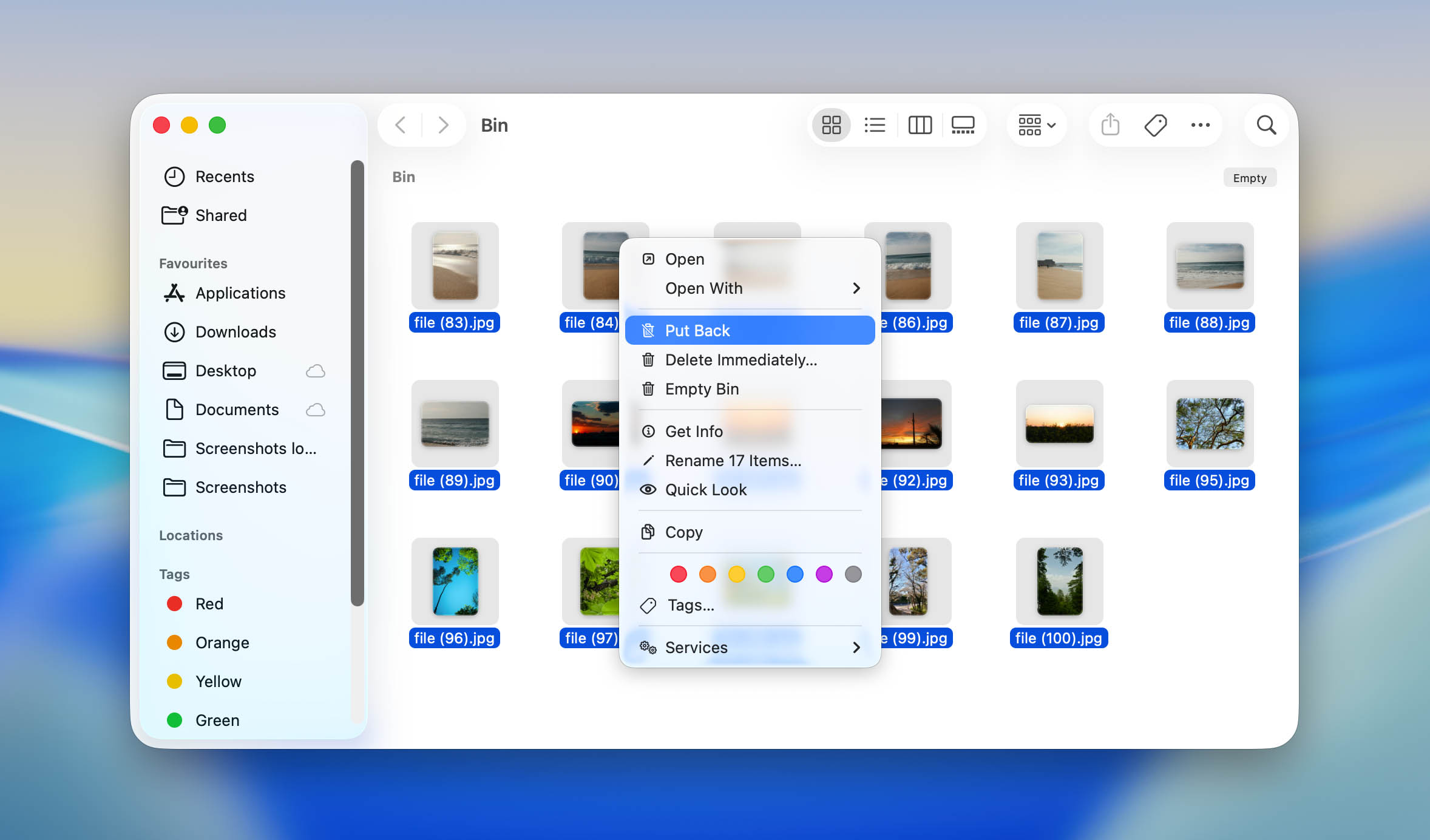
When files are deleted from an SD card while it is connected to your Mac, macOS typically moves them to a hidden Trash folder stored directly on the card instead of removing them immediately. This method offers the highest chance of successful recovery because the files have not actually been deleted yet, but it only works if the files were removed through macOS and the Trash folder has not been emptied.
- Connect your SD card to your Mac.
- Click on the Trash icon in the Dock.
- Find your deleted files and highlight those that you want to recover.
- Either right-click on them and select “Put Back” or drag and drop them onto the Desktop or into the folder where they belong.
What if you can’t find the files deleted from your SD card in Trash? In that case, you should use SD card recovery software for Mac, which is where the next method comes in.
Method 2: Recover Deleted Files with Professional Data Recovery Software
Data recovery software provides the highest chance of recovering lost files from an SD card in most real-world scenarios. Unlike backup-based methods, it does not require previously created copies of your files and can often restore data lost due to deletion, formatting, corruption, or partition damage. It can also recover files that were deleted directly on a camera, smartphone, drone, or another device, even if the SD card was never connected to your Mac at the time of data loss.
For this demonstration, we’ll be using a popular app called Disk Drill. It’s very easy to use, it recognizes the file system formats commonly installed on SD cards, and it supports more file signatures (especially photo and video file types) than most of its competitors.
Disk Drill also has a scan type called Advanced Camera Recovery, which was specially designed to rebuild fragmented video files during the recovery process to ensure that they are viewable/playable. Many apps can recover photo and video files, but are unable to rebuild them – this results in recovered files that you can’t even open.
- Download and install the Disk Drill app.
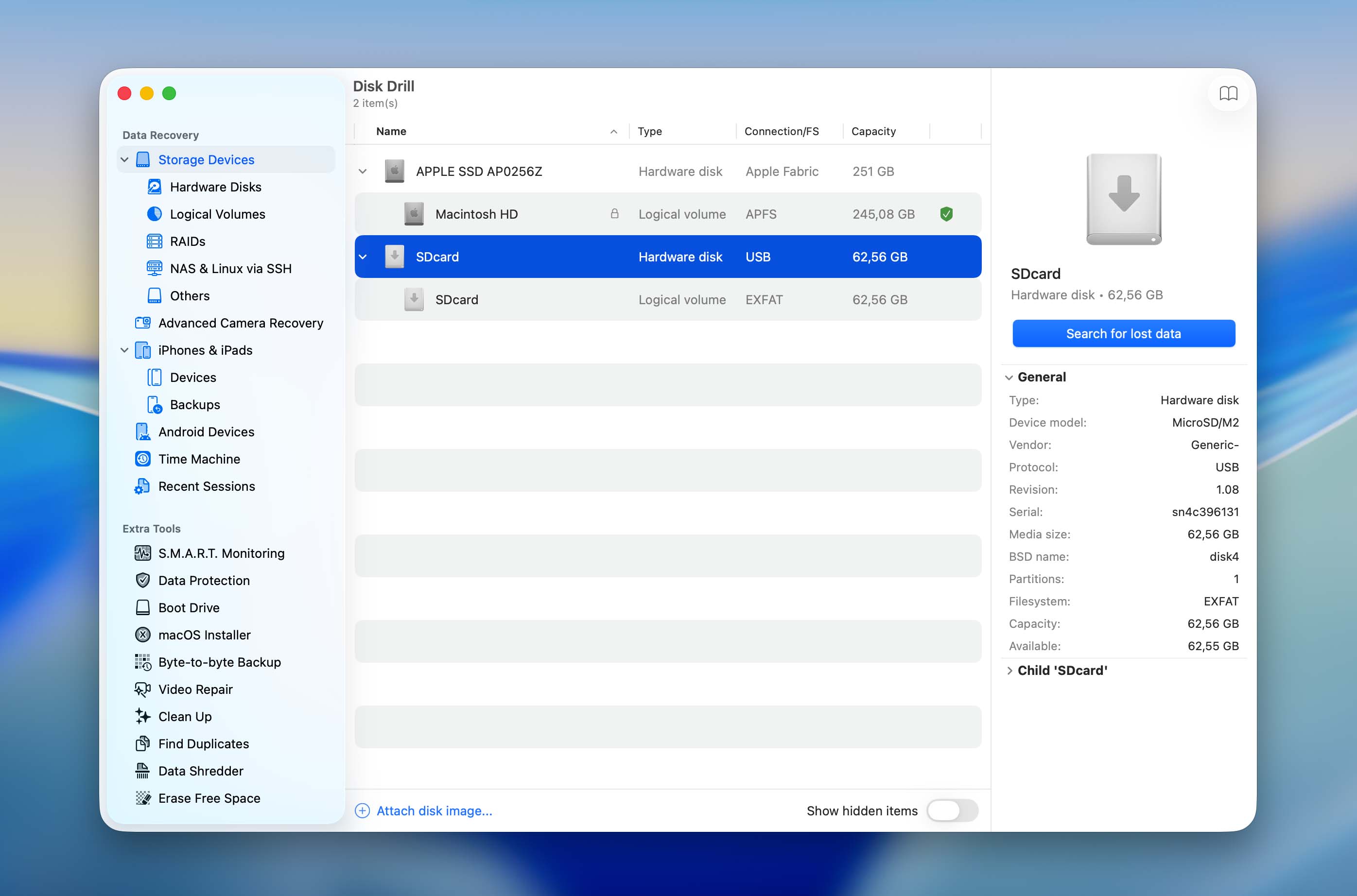
- Open Disk Drill. In the Storage Devices menu, select your SD card. If you’re using a memory card adapter, it may appear as “Generic USB Device” or similar. Then, click Search for lost data.
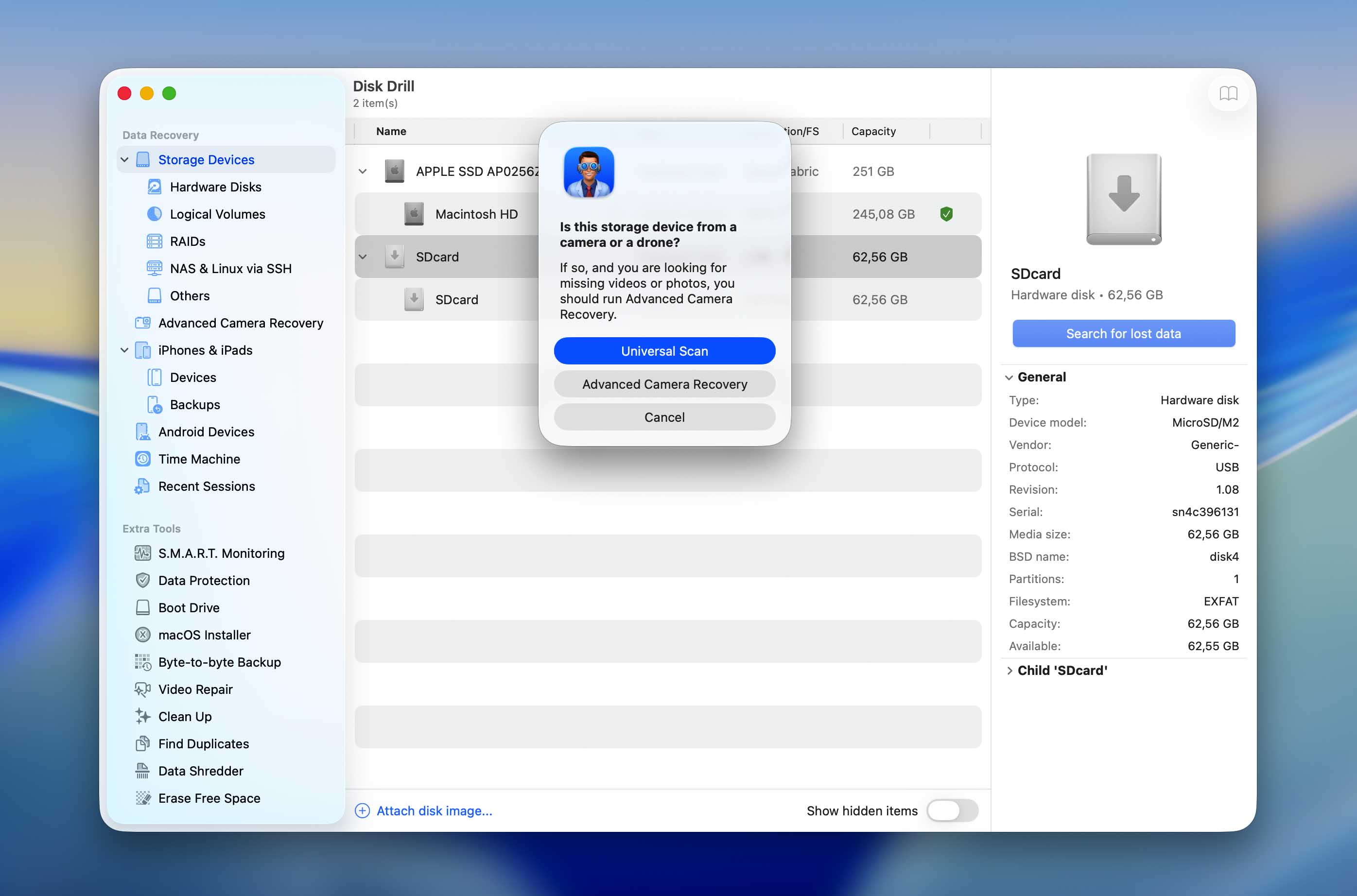
- After that, a small dialogue window should appear, asking if your storage device is from a camera or a drone. If so, select the Advanced Camera Recovery option. If not, or if your SD card is showing signs of corruption, choose Universal Scan instead. Don’t worry, both processes follow identical next steps.
- Wait for Disk Drill to finish scanning your SD card. Once it’s done, click Review found items.
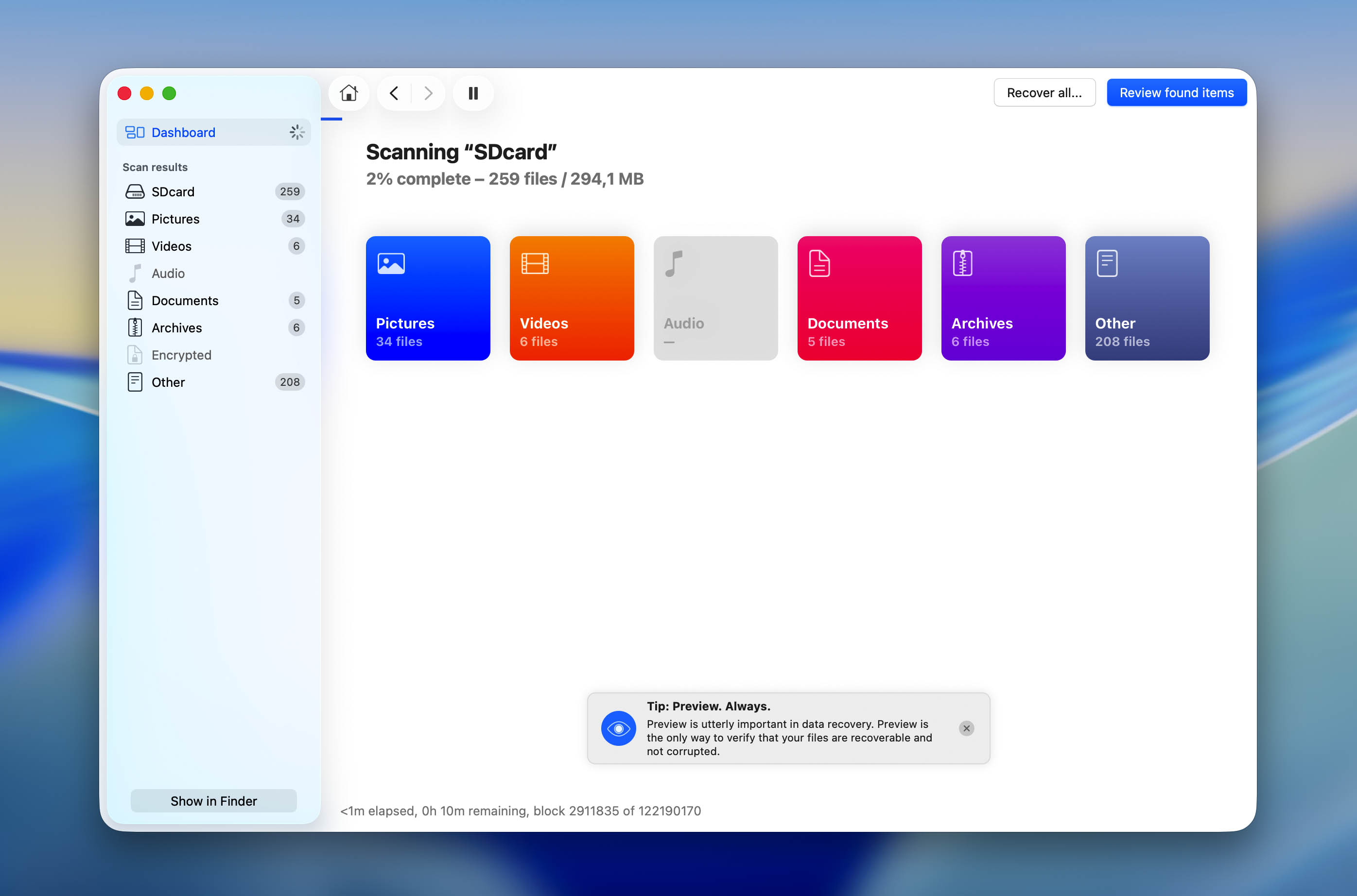
- Use the filters in the sidebar, as well as the search bar in the top-right corner of the window, to narrow down the scan results. To preview a file’s contents, hover your mouse pointer beside it and click the eye button that appears.
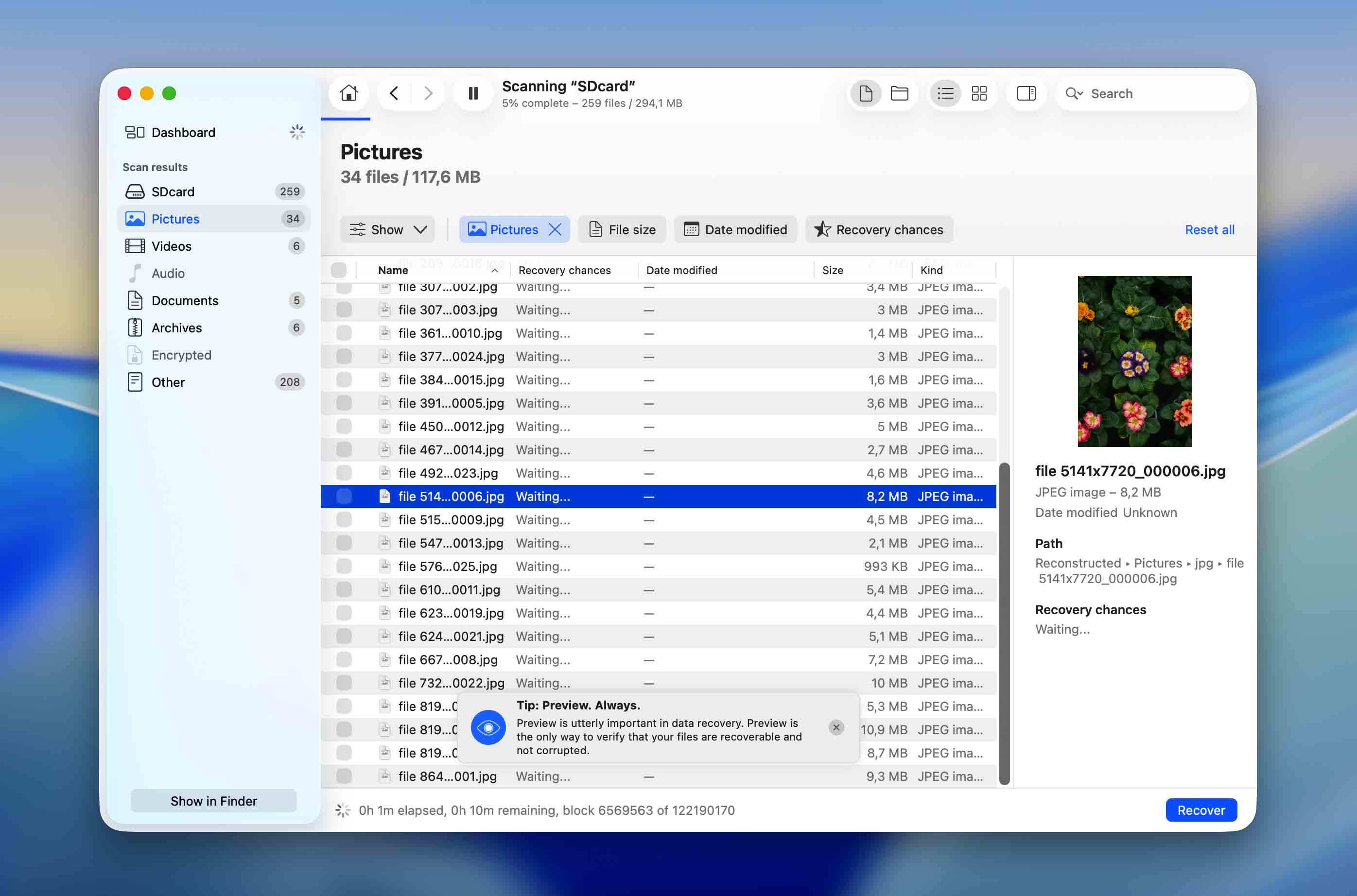
- Once you’ve located the files you want to restore, select them by clicking the boxes in the leftmost column. Then, click the Recover button.
- In the dialogue window that appears, select a location on your Mac (not your SD card) where you want Disk Drill to save the restored files. Finally, click Next.
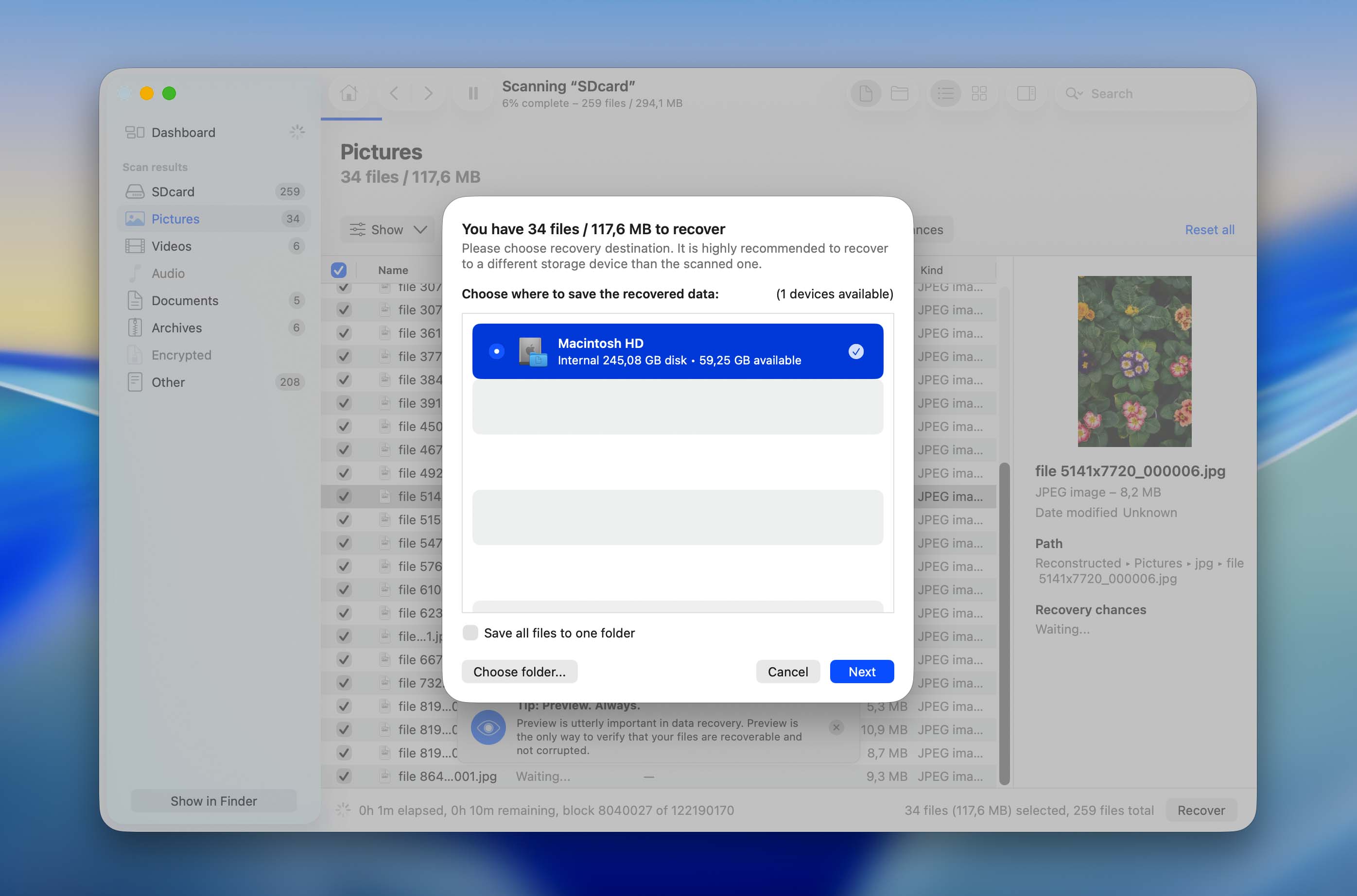
Once the recovery process is complete, you’ll find your restored files in the location you selected in step 7. We recommend that you immediately test your recovered video files and make sure they are playable.
Method 3: Recover Deleted Files with Open-Source Data Recovery Software
If you’re willing to learn how to use it, the open-source data recovery tool PhotoRec is a good option for restoring deleted files from an SD card. Its signature scanner recognizes a wide range of file types, including documents, videos, and RAW photos. However, PhotoRec relies on file signatures and fully ignores file system metadata, which means recovered files are restored without their original names, folder structure, and other file system information. It can also struggle with fragmented video files commonly produced by modern cameras and drones, as reconstructing such files often requires specialized recovery algorithms found in dedicated tools like Disk Drill.
The PhotoRec download automatically comes with TestDisk, which is also an open-source recovery software that focuses on restoring missing or corrupted partitions. If you think your SD card is missing a partition, we show how to use TestDisk in our partition recovery article.
- Install Homebrew if it is not already available on your Mac. Then, open Terminal and install PhotoRec (included with TestDisk) using the following command: brew install testdisk
- Type the following command and hit return (enter your password if prompted): sudo photorec
- Use your arrow keys to move up and down the list and select your SD card (you can figure this out by comparing disk sizes in Disk Utility). It’s also a good idea to choose the “rdisk” volume instead of “disk” for a more comprehensive scan. Then, hit return.
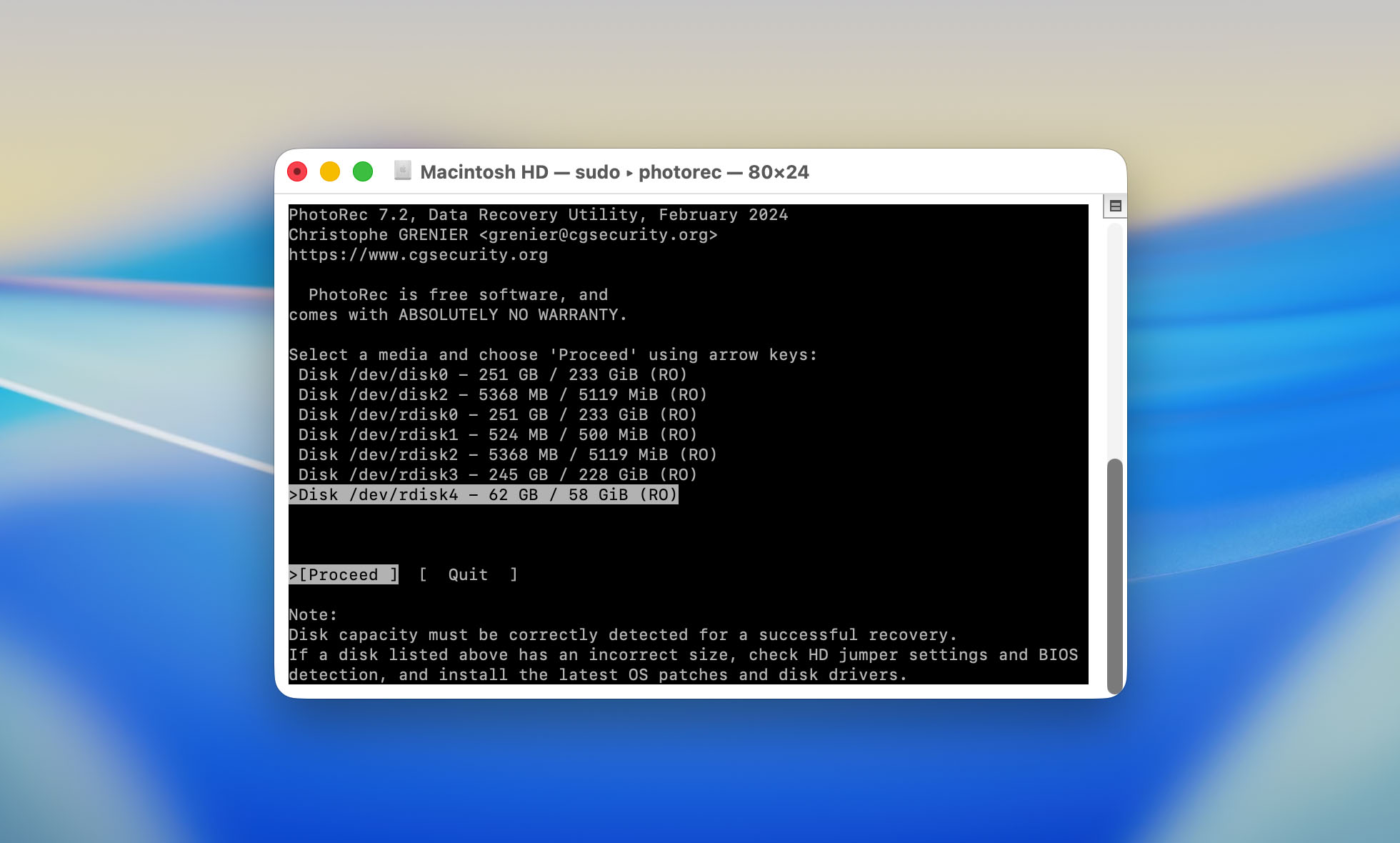
- Choose the partition that contains your data, then use your arrow keys to highlight “File Opt” and hit return.
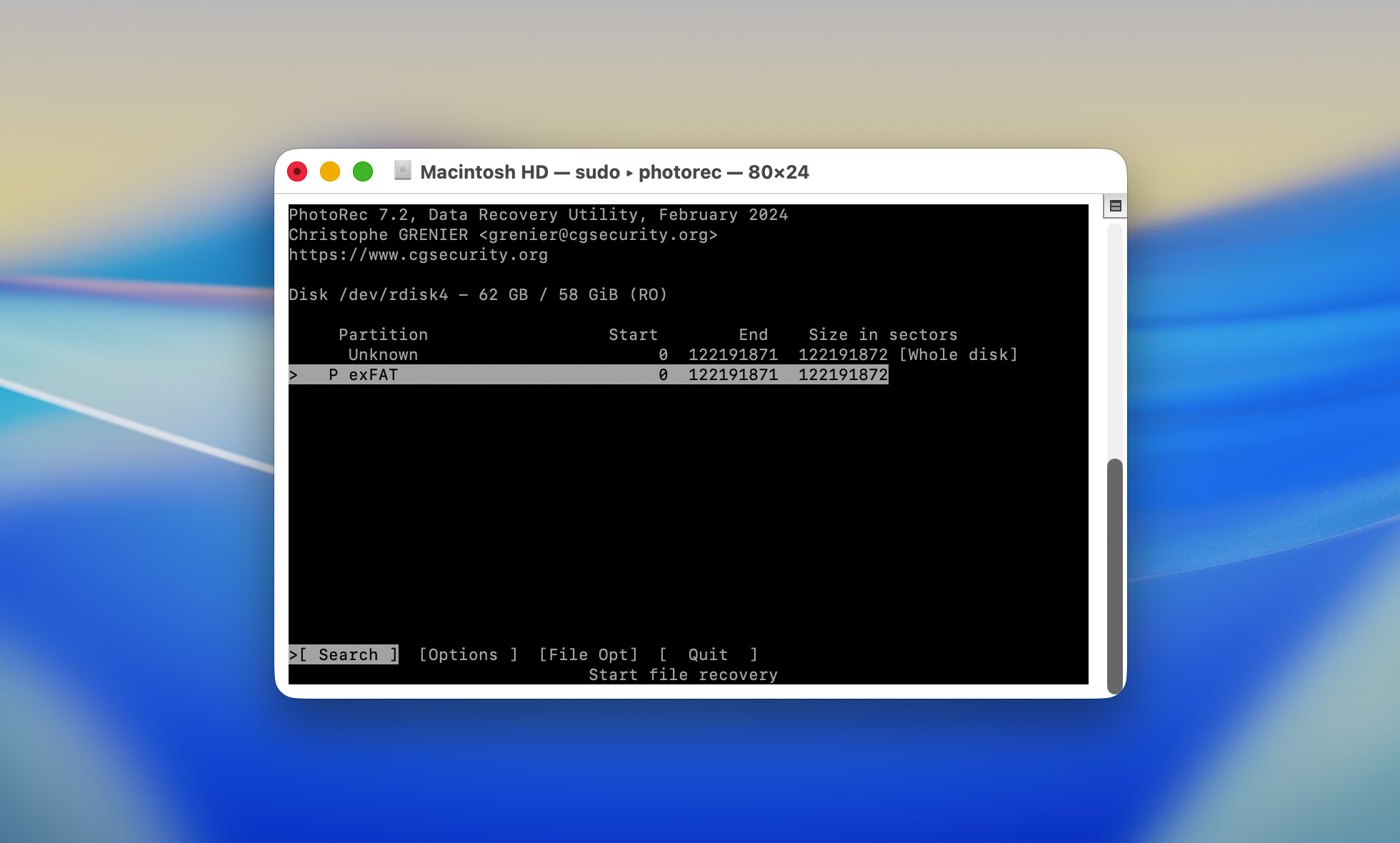
- Browse the list to make sure the file types you want to recover are ticked (ex. RAW files), then hit return to go back to the last screen.
- Use your arrow keys to highlight “Search”, then hit return.
- Select “Other”, then hit return.
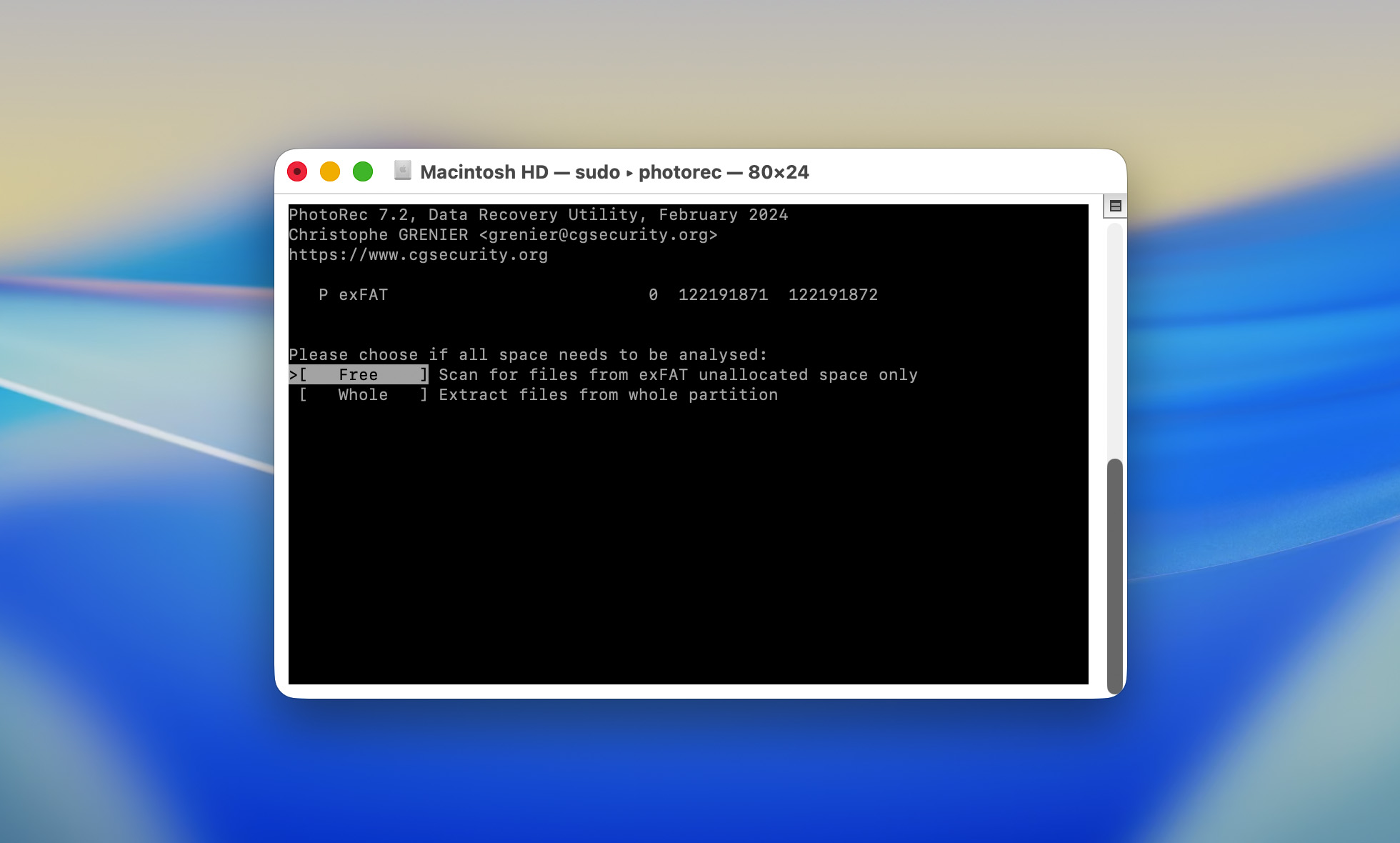
- If you accidentally deleted your files (or formatted your SD card), choose “Free.” If your data (or entire SD card) is corrupted, choose “Whole.” Hit return.
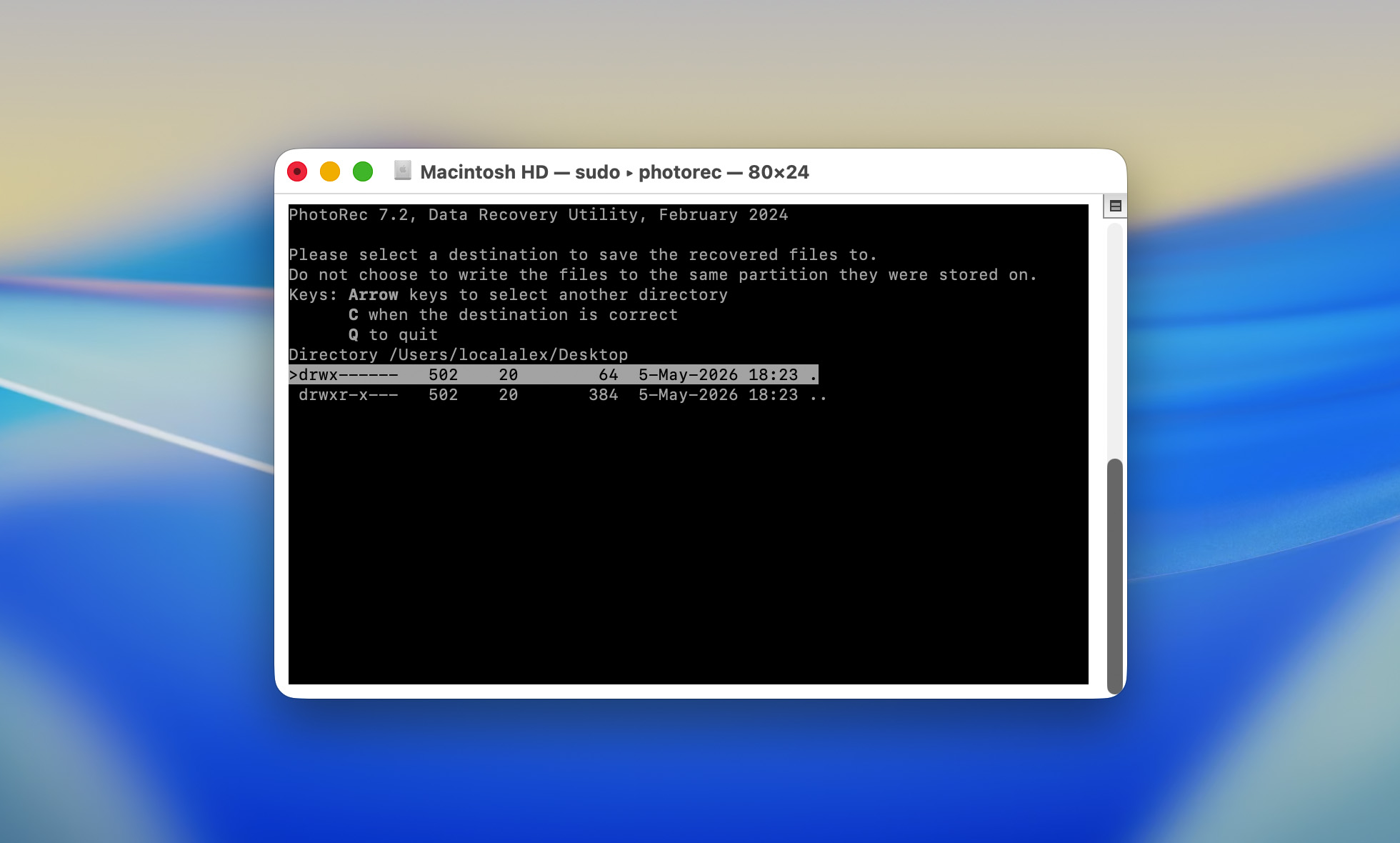
- Choose a destination for the recovered files, then hit (C) to confirm and begin the recovery process. Here’s a tip: Use the left and right arrow keys to go deeper into folders.
Once PhotoRec completes the recovery process, your files will be saved in a folder named “recup_dir” or “recup_dir.1~” in your selected destination.
Method 4: Recover Deleted Files on Mac with Time Machine
Time Machine can help recover SD card files if copies of those files were previously stored on your Mac and included in a backup. This commonly happens when photos, videos, or documents are copied from an SD card to locations such as the Desktop, Downloads folder, Pictures folder, or another local directory before being edited, shared with clients, uploaded to cloud storage, or otherwise processed. If those files existed on your Mac at the time a Time Machine backup was created, you may be able to restore them even if the original copies are no longer available on the SD card.
Step 1. Connect the drive that contains your Time Machine backups.
Step 2. Open the folder where the SD card files were likely copied before they were deleted. Common locations include Desktop, Downloads, Documents, Pictures, Movies, or a custom project folder.
Step 3. On the menu bar, click the Time Machine icon and select Browse Time Machine Backups.
Step 4. Use the timeline on the right side of the screen or the navigation arrows to go back to a date when the missing files were still present.
Step 5. Locate the files or folders you want to recover, select them, and click Restore.
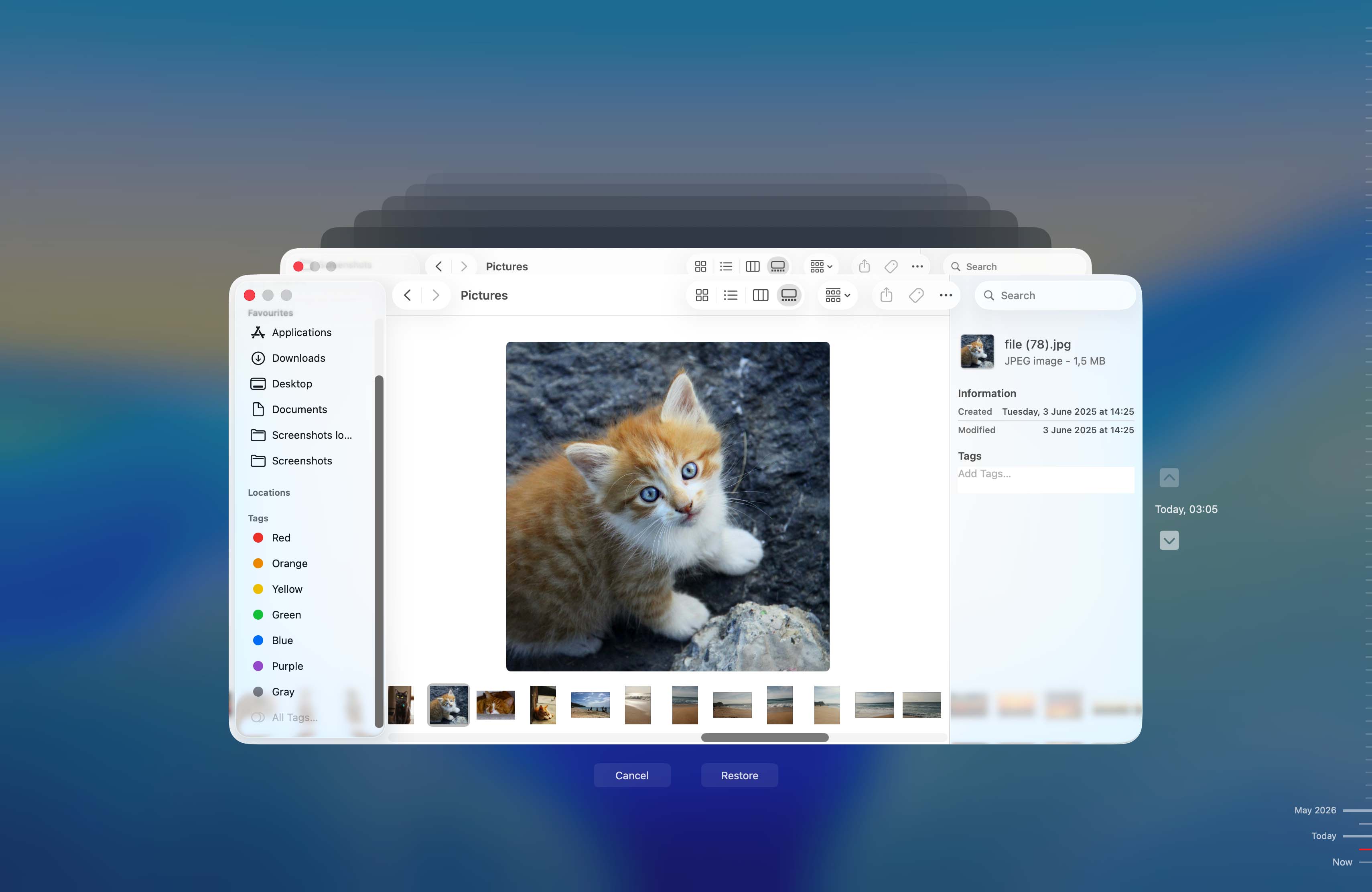
Step 6. Verify that the recovered files open correctly and copy them to a safe location if necessary.
Method 5: Restore Your SD Card Files From a Cloud Backup
Do you have any cloud storage services enabled on your Mac? Certain cloud storage services have features that automate the file-uploading process for you in different circumstances. Depending on how it’s set up, you may have copies of your SD card files that were automatically saved to the cloud.
For example, Dropbox has a feature called Camera uploads. When enabled, Dropbox will automatically back up photos and videos from external storage devices as soon as they connect to your Mac. Even if the original copies of your photos get deleted from your SD card or even from your local Mac disk, you can easily download their backup copies from Dropbox’s (or another service’s) website.
Step 1. Open any browser and log in to Dropbox.com.
Step 2. Navigate to the Camera Uploads folder. Then, select the files you want to save and click the Download button.
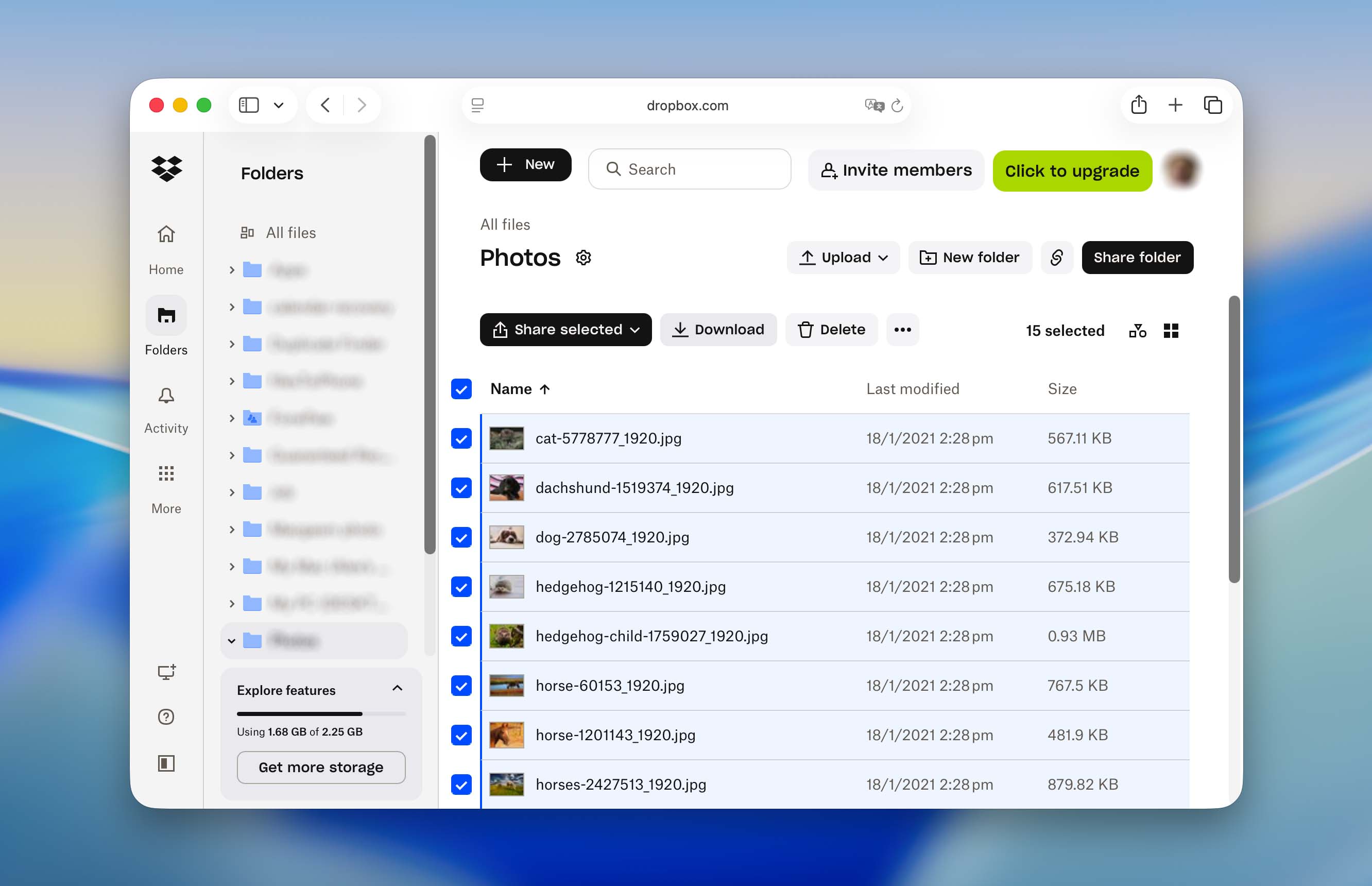
It’s also worth checking whether your camera manufacturer provides its own cloud backup service. Many modern cameras can automatically upload photos and videos to the cloud through a companion mobile or desktop app. For example, some Sony cameras support automatic cloud uploads through the Creators’ App ecosystem, while other manufacturers offer similar features through their own platforms. If cloud synchronization was enabled before the files were lost, you may be able to recover copies directly from the service even if the original files are no longer available on the SD card.
Do your SD card files keep mysteriously disappearing?
If your SD card files keep going missing without human intervention (e.g. accidental deletion or formatting), there’s a good chance that it got corrupted. This might have been caused by a number of varying issues, like virus infections, read/write interruptions, etc. If this is the case for you, recovery and repair might still be possible if you act quickly. Check out our guide on how to recover and fix a corrupted SD card on a Mac.
FAQ:
Recovery may not be possible if the SD card was subjected to a low-level (full) format that overwrote the storage space or if a secure erase function such as SD_ERASE was used. These operations are specifically designed to remove existing data and leave little or nothing for recovery software to restore.
- R-Studio
- Remo Recover
- Stellar
- Card Rescue
To learn more about these tools (and the other features of Disk Drill and TestDisk/PhotoRec, read the full article).
- Plug the SD card into your Mac via either a dongle or into the side of it if it has an SD card slot.
- Launch Disk Utility by going into Applications and then Utilities or you can use Spotlight search.
- Your SD card will be on the left-hand side, select it from there.
- Click format and then choose the data format that you wish to format it to.
- All of the data will then be removed from your SD card and it will be set up as new again.
- Plug the SD card into your MacBook Air.
- Launch Disk Utility.
- Click on your SD card.
- Choose to format it.
All of the data will then be removed from your SD card and it will be set up as new again.